Friday, June 19, 2015

Samsung Galaxy S5 reveals its hidden features

We knew all about the Galaxy S5's heart-rate monitor and fingerprint scanner, but dig a little deeper and there's a lot more going on.


Spend a little time with the Samsung Galaxy S5 and you'll quickly see that there's more to this flagship smartphone than the heart-rate monitor on the back and the optional fingerprint scanner on the front.

Of course, these remain some of the phone's most defining characteristics, along with its 16-megapixel camera with 4K video capture, and rapid quad-core processor. Beyond there attention-grabbing headlining acts are several new interesting and useful little gems.


The Galaxy S5 lets you differentiate folders by color.

There's more than one way to organize content on your home screens, but I like the tiny tidbit of using color to differentiate among folders.

After adding a folder (which you can do by long-pressing an app and pressing Create Folder), tapping the on-screen menu button pulls up five color options: blue, grey, maroon, brown, and green. If you don't select one, the folder defaults to blue.

Private Mode
For whatever reason, you want to keep multimedia files in a place where you --and only you -- can see them. The Galaxy S5's new Private Mode gives you an easy way to do this. Once you turn it on in the Settings menu (or quick settings pull-down), you can select any photos, videos, document, or voice file and select the menu choice Move to Private.

While in Private Mode, you'll be able to see any content in separate folders, and can see an overview in the Private folder stored in My Files. Toggling Private Mode off makes all visible signs of these secreted-away files vanish. Note that Private Mode is separate from Samsung Knox, which requires your company's IT department to institute.

Toolbox
If you explore the Settings menu or the quick access settings in the notifications pulldown, you'll notice a quiet little option called Toolbox. Toggle it on and a white dot appears, inscribed with an ellipsis. Tap this and it will expand to reveal shortcuts to popular tools like the camera, voice recorder, browser, calculator, and the notes app -- but you can swap these for other apps.


If Toolbox gets in your way, drag it anywhere else on the screen. It'll fade when you leave it alone long enough. I found I had to move it around more often than not, but it saved the day when I needed to launch the camera app one-handed. Again, it's also pretty easy to toggle on and off from the notifications pull-down, which is something you can also do one-handed.

Heaps more photo-editing features
I'm a big believer in built-in editing tools, and with the Galaxy S5, Samsung has improved what you can do without opening photos in another app. When viewing a photo in the gallery, select Edit from the menu button to see a range of tools to crop and resize; airbrush and fight red-eye; apply filters and effects; and, a personal favorite, draw all over photos.


There are a ton of new camera options in the Galaxy S5 besides, including a mode to let you change focus points afterward, and special treatment for action shots. You can (and should!) read all about the Galaxy S5's spiffed-up camera app here.

Easily connect to other devices
S Beam is really great for sharing content between two NFC-enabled phones, but what about pushing content from the phone to somewhere else? Samsung has finally gotten this task organized into a neater package with Quick Connect, an easy press from the notifications shade. Tap it and you'll see a list of ways you can push your multimedia to your computer and your other connected devices.

Quick Connect replaces a handful of confusing individual apps. If you've never been motivated to push content from your phone to a different device, you may want to now.

Like I said before, this little list is just a sampling of some lesser-known features in Samsung's superphone. Read all about the rest (and see some in action) in my full Galaxy S5 review.

LeBron James, spokesman for Samsung, gives teammates Apple Watches before NBA Finals

[Samsung spokesman LeBron James] sent a gift to the players actually use Apple, according to reports, before the Cleveland Cavaliers and Golden State Warriors NBA Finals open, as Samsung spokesman James Cavaliers players headed to enhance team cohesion, we decided to send a gift to his teammates, stunned junior partner was his choice was actually Apple Watch. It is worth noting that last year, James was also the quality of Samsung mobile phones tucao on Twitter, then immediately delete posts. Of course, this is not the first time Samsung spokesperson beat face. Samsung last year invited a well-known pop singer Maroon5 Levin combination of Note4 endorsement, but when used in a Twitter post after he is iPhone.


LeBron James is Samsung’s guy. But when it’s time to give gifts to his teammates, the basketball superstar opts for Apple products.

Cleveland.com reported that LeBron gave each of his Cavs teammates an Apple Watch toward the end of a meeting last week he organized in preparation for the NBA Finals.

Chris Haynes described how the meeting at the team’s Four Seasons hotel in San Francisco started serious, with LeBron talking about battling through adversity and staying together as a team.

LeBron James, spokesman for Samsung
But then the four-time MVP lightened the mood as he brought in food, played some tunes, and had barbers come in to give the players an NBA Finals trim.

LeBron also surprised his teammates with an Apple Watch. As a long-time Samsung celebrity representative who has appeared in numerous Samsung ads, LeBron could have opted for the Galaxy Gear. Instead he went with the arch rival’s device.

iwatchLeBron is apparently a generous teammate, with J.R. Smith noting that he’s given away sneakers, watches, hoodies, book-bags, and Beats headphones.

That last one — Beats, now owned by Apple — is also an interesting tech choice given James’ sponsorship with Samsung. But James has rocked the Dr. Dre-designed headphones since the beginning, becoming a small equity owner during the company’s early years. He also just appeared in a new Beats ad.

A representative for LeBron told CNET that he also gifted teammates with a Samsung Galaxy S6 Edge, and that the Apple Watches were a gift from Beats.

Regardless, you got to love LeBron dolling out the latest tech gadgets to his team. He’s making it happen on the court, too, averaging 41.5 points, 12 rebounds, and 8.5 assists through two games of the NBA Finals.

The series with Golden State is tied 1-1. Game 3 is Tuesday night in Cleveland — cable subscribers can stream it at WatchESPN, which just set a streaming NBA record on Sunday.

Relate Article: Samsung Spokesman LeBron James Choose Apple as a gift

Wednesday, June 17, 2015

How to recover text messages from Samsung Galaxy on Mac

[Summary]: Lost messages or deleted SMS on your Samsung Galaxy smart phone? Once your Samsung lost messages,and you use a MacBook,it’s possible to extract deleted text messages from Samsung and save on your Mac.

You might be in panic mode if this happens to you. But don’t stress yourself because there are various ways on how to recover the important messages that were deleted. That’s right, you can use a recovery program for scanning and recover lost text messages from Android on Mac.
Mac Android Data Recovery
Android Data Recovery for Mac
It is a powerful android text message recovery program that you can use. You can download the free trial to personally try if it really works before deciding to spend money in purchasing the full version. It can be used to recover lost SMS from Samsung Galaxy on Mac. What’s more,the mac data recovery for Android also can help you scan and find other lost contents back from other android devices such as HTC, LG, ZTE and Sony.

Free download the android data recovery for (Mac&Windwos):

Download Windows Version Download Mac Version

It has an organized and easy to understand user interface making it convenient to use. Launch the application and you will be walked through on the steps on how to have your phone detected by the data recovery software. Once your device is detected, it will scan your phone and show the data found divided into categories including messages, contacts, gallery and videos. Click on “Messaging” to check on your SMS. Select the messages that you wish to restore and click the “Recover” button.

Step by step to recover text messages from Samsung Galaxy on Mac:

Android Data Recovery for Mac works perfectly with different phone brands, Samsung, HTC, Sony, LG, Motorola and Google Nexus. About thousands of phone models supported.

Step 1. Stop Any Operation Once Android Data Get Lost
Leave your Android phone alone when you find that some or all your Android data get lost. Remember not to add or do any operation on your Android. Otherwise, your phone will be overwritten and the data loss will become irreversible. So, just leave it alone and download and install Android Data Recovery (Mac) on your computer and move on.

Android Data Recovery (Mac)
Step 2. Connect Android to PC and Enable USB Debugging
After downloading and installing the program, launch it and connect your Android device to the computer.

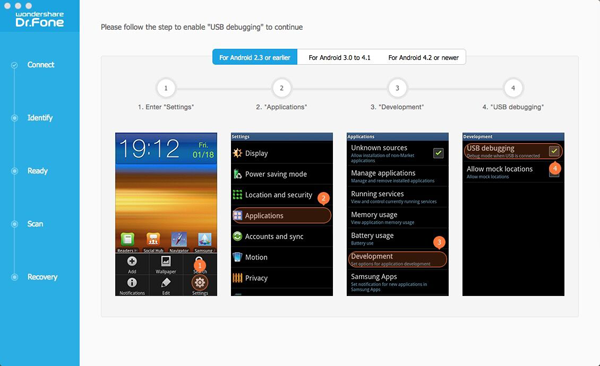
Once your Android device is detected by the program, you will be asked to enable the USB debugging of your Android device. There are three different steps listed, just choose the suitable one according to your Android OS.

1. If you use Android 2.3 or earlier: click "Settings" < "Applications" < "Develpment" < "USB debugging"


2. If it is Android 3.0 to 4.1: Find "Settings" < "Developer Options" < "USB debugging"


3. For Android 4.2 or the later: Just try "Settings" < "About Phone", tap "Build number" for several times until you get a note: "You are under developer mode". Then, go back to "Settings" < "Developer options" < "USB debugging".


Note: Please make sure that the battery is more than 20% to ensure a complete scan. If you've enabled the USB debugging before, you can just skip this step.

Step 3. Scan lost messages from your Samsung Galaxy phone
Then, you will be shown a window with multiple data type listed. Such as "Contacts", "Messages", "Call history", "WhatsApp Messaging & attachments", "Gallery", "Audios", "Videos", "Documents", and more.


Just choose the scan mode, standard one or the advanced one as you like. Then tick the data types you want to recover and click "Next" to move on.

Then a super user request should be allowed. Just follow the below interface:


Note: If the superuser request doesn't pop-up, please tap "Retry".

Step 4. Preview and Recover the Data on your Android
Before long, all the data including the deleted and existing ones will be scanned out and listed in categories. Choose the data type you want, take contacts for example, not only the contact amount, but also the name, company, job title, phone number and email will be shown in the interface.

Recover sms,contacts from Samsung on Mac
You can preview the contacts listed on the interface one by one and choose all those you want by ticking the box next to the contacts. After choosing all you want, just click "Recover" in the lower right corner of the interface. To display the deleted items only, you can turn off the "Only display deleted items" option in the top of the interface.

Download the Android Data Recovery for Mac:

Download Windows Version Download Mac Version

It is not complex at all, isn't it? After that, you've recover deleted contacts from Android to your Mac. Different data types are included by Android Data Recovery for Mac: Contacts, messages, call history, WhatsApp Messaging & attachments, gallery, audios, videos and documents, etc.. No matter which data type you want, there's a precondition for you: You should have a backup. So it is a good choice to regularly back up your Android so as to keep the backup files up-to-date. If you have any problem on recovering Android data on Macbook or don't know how to back up your Android, you can come for us for help. We are always here for help.

Tips: If you want to transfer those restored text messags from Mac back to your Samsung Galaxy phone,here we recommend you use this Android Data Transfer for Mac,it not only allows you copy messages back to Samsung device,but also can help you transfer contacts, videos, music, call history from Mac to Android phone directly.

Read more:

how to recover contacts from Samsung on Mac

Recover lost photos from Samsung Galaxy on Mac

How to Recover Contacts from Samsung Galaxy on Mac?

If you accidentally deleted your contacts from your Samsung phone, if you use MacBook and want to extract lost contacts from Samsung and save on MacBook,you can use a Android Data Recovery for Mac program,which enables you to directly scan your Samsung device and restore your contacts from Samsung on Mac.What’s more,the Android Contacts Recovery for Mac also can help you recover Samsung videos, photos and text messages on Mac. This Mac Android Data Recovery program is a completely safe, reliable and easy to use.
recover samsung contacts on mac
If you want to recover your Samsung lost data on Mac, Android Data Recovery(Mac) is the great option for you.

Download Windows Version Download Mac Version
This article is to tell to how to restore deleted contacts from Samsung  on Mac, you also can follow the same steps to recover Samsung lost photos, videos and music on Mac directly.

How to Recover Samsung Lost Contacts on Mac?

Step 1: Connect your Samsung device to your Mac

After downloading, install and launch Jihosoft Android Phone Recovery program on your computer. Connect your Samsung Galaxy S3 to PC via USB cable. After that, it will identify your device automatically.


Step 2: Scan deleted contacts on your Samsung Galaxy phone

When your Samsung Galaxy s3 is successfully detected by the APP, you will see the following window. Continue to click “Start” button for scanning your device.


Step 3: Preview and recover contacts on your Samsung phone.

Click “contacts” on the left. Now you can preview and mark those you want and then click “Recover”. Wait for a moment and your contacts are retrieved.


Notes: Before recovery, don’t add any data on Samsung Galaxy s3, or it will be overwritten and never be recovered.

Download Windows Version Download Mac Version
With the help of Android Data Recovery for Mac, you can also recover lost text messages, photos, videos, audio files from Samsung Galaxy s3/s4 Mini as well. Just try it for free.

Related Articles:

How to Recover Deleted Contacts from Android on Mac

How to Recover Deleted SMS from Android on Mac

Sunday, June 14, 2015

Free Android Data Transfer: Android to Android Transfer, Android to PC/Mac Transfer

You can transfer text messags, contacts, photos, music, and other files between your computer and device using a USB cable. You can also transfer files from your device to a computer.

The smartphone market continues to be a largely two-horse race between Android and iOS, which accounted for 53.2% and 41.3% market share in January 2015, followed by Windows Phone, BlackBerry and other less popular platforms. In 2014, Android powered 1.1 billion shipped smartphones, up 32% from the 8.2.2 million units shipping with Google’s mobile OS in 2013. Among the OEM of Android-powered devices, Samsung remains King of the Android market, shipping more units than the LG, HTC, Sony, Motorola, Google, and Huawei combined.

Among the smartphone users, more than half are using Android platform. This inevitably involves Android data transfer. Every Android manufacture has their own software to manage their Android phones or tablets, such as Samsung Galaxy, LG PC Suite, HTC Sync Manager, Motorola Migrate, Sony Xperia Transfer, etc. There are also other third-party software developed to transfer Android data, both freeware and shareware are included. You can choose the suitable application from below recommendations to transfer your Android phone data.

Android Data Manager (Android to PC/Mac Transfer)

The Android to PC Transfer or Android to Mac Transfer is a professional software helping you backup and restore Android data on computer, move music, videos, photos, contacts, messages, apps and documents between your Android device and computer, both Windows PC and Max OS X are supported. Before purchasing this software, you can download the demo version to have a try.

http://www.z0download.com/download/mobile-phone-transfer.exe 


Phone to Phone Transfer (Phone Data between different OS phone)

Making a phone switch is very common. If you copy data from an iPhone, Android, BlackBerry or Nokia Symbian phone to an Android phone, the Phone Transfer is able to transfer your old phone data to your new Android phone directly, including contacts, text messages, calendar, call logs, apps, music, videos and photos. You can also transfer Android data to iPhone or Nokia phone.

http://www.z0download.com/download/mobile-phone-transfer.exe   


Trouble transferring files through USB
If you’re having trouble transferring files, try the following steps:

-Try a different USB cable. Not all USB cables can transfer files.
-Test the mini-USB port on your Nexus device by connecting your device to a different computer.
-Test the USB port on your computer by connecting a camera or other device with USB.
-On your device, make sure that the USB computer connection is set to “Media device (MTP).”
Touch  Settings > Device > Storage. Then touch Menu Menu > USB computer connection. MTP should be selected by default, but you may have to uncheck MTP, check and uncheck Camera (PTP), and then recheck MTP.

Update your Android OS to the latest version available
-Restart your device.
-Restart your computer.
Windows troubleshooting
-Check your computer’s settings to make sure Windows automatically detects new hardware.

Mac troubleshooting
-Make sure that Android File Transfer is compatible with your computer. You must have Mac OS X 10.5 or later and Android 3.0 or later.
-Make sure the Android File Transfer application is open.

Read more: How to transfer Samsung data to iPhone 6

Phone Transfer(Mac):Transfer data between mobile phones on Mac

If you use Macbook,instead Windows computer,to transfer data from old phone to new phone on Mac or backup phone’s data to Mac,you must to use a Phone to Phone Transfer for Mac.

It would be happy if you just got a new smartphone. There will be no big differences if you switch from Android to Android, Android to iPhone, iPhone to Android or from iPhone to iPhone. However, if change platforms, say from Android to iOS, it will not only be a headache but a shock to the new operating system for some people. Your old phone has been with you for several years and it’s set up how you like it - with all of your contacts, messages, music, apps, settings, etc. And your new phone with different system has unique manipulation idiom. So how to move all of that precious data from your old phone to your new handset? That is why Mobile Phone Transfer was developed.

transfer data phone to phone on Mac
The Phone to Phone Transfer for Mac (MobileTrans for Mac&Windows) is able to get your stuff off your old phone and on to your new phone seamlessly. It can transfer contacts, messages, calendar, call logs, apps, music, videos and photos directly between iPhone, Android, and Nokia phones, more than 3,000 devices are supported. Besides phone to phone transfer, the Mobile Phone Transfer also lets you backup phone data to computer, erase your old phone data to keep personal privacy, restore iTunes or iCloud backup file to iPhone, restore Samsung Kies Backup file to Samsung Galaxy phone, restore BlackBerry backup file to iPhone or Android phone.

http://www.z0download.com/download/mobile-phone-transfer.exe 
Support Windows 10, 8.1, 8, 7, Vista, and XP
Support Mac OS X 10.6 Snow Leopard - 10.10 Yosemite

The powerful function of Phone Transfer:

Phone to Phone Transfer - transfer data between iPhone, Android and Nokia Symbian phone.
Restore from Backups - restore backup file to phone from iTunes, iCloud, Kies, BalckBerry, etc.
Backup Phone data - backup important phone data to Windows PC or Mac OS X.
Erase old phone data - erase old phone data to protect personal privacy information.

Which phones and tablets are supported by Mobile Phone Transfer?

iOS: iPhone 6, iPhone 6 Plus, iPhone 5S, iPhone 5C, iPhone 5, iPhone 4S, iPhone 4, iPhone 3GS, iPhone 3G, iPod touch, iPad, iPad mini, iPad Air, Apple Watch.
Samsung: Galaxy S6, Galaxy S6 edge, Galaxy S5, Galaxy S5 Active, Galaxy S4, S4 Mini, S4 Active, S4 Zoom, Galaxy S3, S3 Mini, Galaxy S2, Galaxy Note 3, Note 2, Galaxy Note 4, Galaxy Nexus, Galaxy S, Galaxy Tab, etc.
HTC: HTC One M9, HTC One M8, HTC Nexus 9, HTC One X, One S, One V, HTC Wildfire S, HTC Desire, HTC One, HTC Butterfly S, etc.
Motorola: Moto X 2, Moto X, Moto G2, Moto G, Moto E, Nexus 6, Droid RAZR M, Droid RAZR MAXX HD, ATRIX HD, ELECTRIFY M, Droid BIONIC, etc.
Sony: Xperia Z4/Z3/Z2/Z, Xperia M, Xperia SP, Xperia L, Xperia ZL, Xperia E, Xperia T, Xperia TX, Xperia SL, Xperia J, etc.
LG: Nexus 5, Motion 4G MS770, Optimus L9, Optimus G, Lucid VS840, Nitro P930, Viper LS840, Spectrum VS920, Intuition VS950, etc.
Nokia: Nokia N8, E6, 5230, 5800 XpressMusic, N97, N97 mini, X6, 5570 XpressMusic.
Huawei: Ascend P8, Ascend P7, Ascend Mate 7, Ascend G7, Ascend 7, Ascend G6, Ascend P2, Ascend Mate, MediaPad X2, Honor 6, Honor 6 Plus, Honor 4X, etc.
Other phones: ZTE , Acer, ASUS, AT, Amazon, Archos, Dell, Google, HP, Kyocera, Lenovo, etc.

How to transfer data between iPhone, Android and Nokia on Mac?

Step 1 Install and Run the Program
With this app, you only need to follow the clear and concise instructions on the guide. Run the Samsung to iPhone data transfer tool on the computer. In the first window, click Phone to Phone Transfer to enter the Android to iPhone transfer window.


Step 2 Connect Your Samsung and iPhone to Computer
Connect both of your iPhone and Samsung phone to PC by using USB cables. Both devices will be instantly detected, then show all internal data in the panel.


Step 3 Analysize and Load the Data in Samsung Phone
Make sure that your cell phone's sim card is inside of the two phones, the program will detect your Samsung galaxy phone and automatically load the data from it and then are displayed in the window below. Select the files and make sure what will be transferred.


Note: You can click the “Flip” button to change the place between the Source and Destination.

Step 4 Start to Move Contacts
Check Contacts item from the displayed list and click Start Copy to start the transfer process. It takes a few minutes to finish the whole process. There will be a dialog box pops up, showing you the percentage of the progress bar. Never disconnect two devices during the process. Then Access your contacts as seen from step, your new contacts should be on iPhone device.

Free download the Phone Transfer:

http://www.z0download.com/download/mobile-phone-transfer.exe 

What Are The Specialties of Phone Transfer?

Compared with other programs, this Phone Transfer is special in many aspects. It is capable to transfer various types of data, such as text messages, photos, apps, contacts, etc. Besides, it supports over three thousand phones and networks. It provides customers with clear operation instructions and user-friendly interface. Even computer novice can do it in one click. This program also ensures the integrity and security of the transferring contacts. What is your best companion to move all phone number from Samsung Galaxy to Apple iPhone device? Of course Androidsoft Phone Transfer program, with its advanced technology and smart design, it helps people make their life much more effective and simple. Don’t hesitate to try it yourself.

Related Articles

How to Transfer Data from iPhone to Android

How to Transfer&Restore Android Data

How to Transfer Data from iPhone to iPhone

Transfer data from Samsung Galaxy S3/S4/S5 to iPhone 6, iPhone 6 Plus on Mac

Many people you MacBook and iPhone, Samsung Galaxy mobile phone,when you buy a new iPhone 6/6 Plus,the first thing you need to do is transferring contents from old Samsung Galaxy to iPhone 6.However,to copy data between Samsung Galaxy and iPhone on Mac is a difficult task.This article maily teach you a easy way to transfer data from Samsung to iPhone 6 on Mac,or copy data from iPhone to Samsung Galaxy S6 on Mac directly.

It is a good news that Apple released the big screen phones: iPhone 6 and iPhone 6 Plus. The iPhone 6 is bigger than 5S, smaller than 6 Plus. Plan to switch to iPhone 6/Plus, abandoning your old Samsung Galaxy phone? Apple iPhone’s biggest advantage over Samsung’s Galaxy phone is the simplicity and style of its software. The latest overhaul, iOS 8, also lays the foundation for new ways for apps to work with us, and with each other. So, if you need a big screen phone but do not like Android phone, iPhone 6 or iPhone 6 Plus are the best choice.

Transfer Samsung data to iPhone 6
When copy data from old phone to new phone on Mac, you have to use a phone transfer for Mac. How do you copy the contacts, messages, music, videos and other document files from your old phone to new device? Here, we recommend Phone to Phone Transfer for Mac, which is a professional data transfer software for mobile phone users to copy data between mobile phones (Android phone, iPhone, Nokia Symbian phone). It supports transfer your phone data to iPhone 6, iPhone 6 Plus from Samsung Galaxy S3, S4, S5,S6,, and Samsung Galaxy Note series phones.

Free to download the Phone Transfer(Mac&Windows):

http://www.z0download.com/download/mobile-phone-transfer.exe 

Support Mac OS X 10.6 Snow Leopard – 10.10 Yosemite
Support Windows 8.1, 8, 7, Vista, and XP

Transfer Galaxy phone data to iPhone 6, iPhone 6 Plus

1. Launch Galaxy and iPhone Data Transfer, you can see the intuitive interface as below.


2.Select Phone to Phone Transfer, which prompts you to connect your source phone and destination phone via USB.


3. Tick the content to copy, you can select contacts, text messages, music, videos and photos. The press Start Copy button.


4. You will see the whole process of data transfer from Galaxy phone to iPhone 6 or iPhone 6 Plus.


Free download the Phone Transfer:

http://www.z0download.com/download/mobile-phone-transfer.exe 

Tips: The Mobile Phone Transfer (Mac&Windows) is able to get your stuff off your old phone and on to your new phone seamlessly. It can transfer contacts, messages, calendar, call logs, apps, music, videos and photos directly between iPhone, Android, and Nokia phones, more than 3,000 devices are supported.You can use this Phone Transfer to copy any data between iPhone, Samsung, Nokia, HTC, LG,ect on MacBook directly.

Read more: Transfer data from iPhone to Samsung Galaxy S6