Samsung Recovery Transfer Blog - Find some useful Samsung data recovery solution,Samsung data transfer tips and Samsung backup restore tutorial to fix your problem.
Ask for help, Samsung Galaxy S3 lost contacts: “How to recover contacts from my Samsung Galaxy? There were too much data on my Galaxy Note. I just want to clean it up, but accidentally deleted the whole contacts list. I checked my Google account. There is no backup. How can I get them back? Is there any way to recover deleted contacts from Samsung Galaxy Note? ” Ask by Doblo in forums.androidcentral
“I lost my contacts from my phone memory samsung galaxy S3 (gt-i9300) how can i recover my deleted contacts now? :- Ask by Cameron in Samsung forum
To recover deleted contacts or lost contacts from your Samsung Galaxy S3,you can use a professional Android Samsung data recovery. This Android data recovery can perform contacts recovery from Samsung Galaxy. Incidentally, this contacts recovery tool can enable you to directly scan your Samsung device and Recover lost Contacts from Samsung Galaxy, as well as messages, photos and videos.
If you want to recover Samsung contacts, please not use your Samsung mobile phone again, in order to avoid the deleted contacts overwritten and go forever.However,the Android Samsung Data Recovery is the world’s first data recovery for Samsung users restore contacts directly.What’s more,this Dr.Fone for Android also supports recover SMS, Photos, Videos and more from Samsung Galaxy S7/S7 Edge, Galaxy S6/S6 Edge, Galaxy S5/S4/S3. You can download the free trial version below:
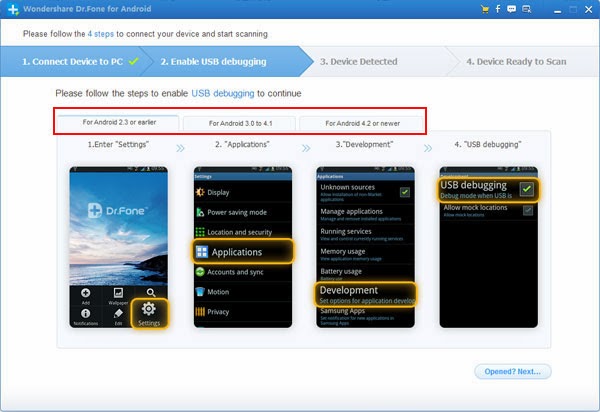
Step1: Before you connect your device to your computer, you need to do USB debugging first before scanning it. You can follow the wizard to do the debugging. Here I will show you three ways to do the debugging. You can choose either one according to system of your Samsung Galaxy device.
Note: You need to root your Galaxy S3 Mini or Galaxy S4 Mini before you perform the contacts recovery with Wondershare Dr.Fone for Android.
1) If you are users of Android 2.3 or earlier, please enter by “Settings” < Click "Applications" < Click "Development" < Check "USB debugging". 2) If you are users of Android 3.0 to 4.1, please enter by “Settings” < Click "Developer options" < Check "USB debugging" 3) If you are users of Android 4.2 or newer, please enter by “Settings” < Click "About Phone" < Tap "Build number", then try several times until you see the note "You are under developer mode" < Back to "Settings" < Click "Developer options" < Check "USB debugging".
Step2: Before the Galaxy S3/S4 Contacts Recovery process, you ought to ensure that the battery of your device is more than 20%. Then please click the button “Start” so that the tool can detect and analyze your device. Just a few minutes later, you will see a Superuser Request window, please click “Allow” to continue. After this, please click “Start” in the screen of your computer.
Step3: Now you can see all files on your device displayed in the starting window. In order to recover contacts, please click the button “Contacts” to bring up the contacts window. You can then preview these contacts and mark those you want to recover. Then click “Recover” to save them to your computer.
Well done! Just free download the Android data recovery now to have a try! With professional Samsung Galaxy S3 Recovery program –Dr.Fone for Android.
You can also Recover lost SMS text messages,Photos,Videos from Galaxy S3/S4 Mini as well.If you use ios iPhone,you can follow this use guide about how to recover Contacts from iPhone.
Do you want to Recover Deleted Text Messages from Samsung mobile phone? Many Samsung users want to recover SMS messages from Samsung Galaxy smartphones,like Samsung Galaxy S5, Galaxy S4, Samsung Galaxy S6, Samsung Galaxy S7,Samsung Galaxy S8, Samsung Galaxy S3, Samsung Galaxy S2, Samsung Galaxy S, Samsung Galaxy Note 7/5/4/3/2,Galaxy A9/A8/A7/A6/A5, Samsung Galaxy J7/J5/J3/J2 Samsung Galaxy S3 Mini, Samsung Galaxy S2 Plus, Samsung Galaxy Ace, Samsung Galaxy Y,ect.However,to recover lost or deleted text messages from Samsung mobile phone,all you need is a Samsung Data Recovery-Android data recovery tool.
How does Samsung Note/Galaxy S2/S3/S4/S5/S6/S7 store text messages?
Other than multi-media files that are saved on SD card, text messages are stored in the internal flash memory of Samsung Note or Samsung Galaxy. Just like the storage principle of hard drive, when you delete text messages or clear your SMS inbox, these deleted text messages are not be erased actually, they are still here, in another form that is invisible and inaccessible. Therefore, if you delete some important messages from your Samsung phone by careless, no need to panic. It is still possible to recover SMS from Android phones, as long as you haven’t taken in new messages to overwrite the deleted ones. One matter needs attention that you should stop using your phone to send or receive new text messages to avoid the deleted messages from being overwritten by the new data. Find a professional SMS recovery tool as soon as possible.
recover SMS from Samsung Galaxy S/Note/A/J phone
Actually, you can restore deleted or lost text messages on Samsung mobile phone,no matter how they lost from Samsung devices,or deleted on your Samsung phone, there is a way! With a professional Samsung SMS Recovery program, you can directly recover text messages from your Samsung phone.What’s more,the Samsung data recovery also allows you recover deleted contacts,photos,videos and other deleted files from the Samsung phone, without any quality loss.It is fully compatible with Windows 10/9/8/7/XP/Vista. If you are a Mac user,Android Data Recovery for Mac is what you need.
Android SMS Recovery - recover lost or deleted text messages on Samsung Galaxy smartphones
If you lost messages or deleted sms on your Samsung Galaxy mobile phone, the Android SMS Recovery can help you scan and extract all messages from Samsung mobile phone directly,then you can save them on a computer.What's more,the Android Data Recovery also enables you recover SMS from broken Samsung. Let's read the guide below may help you how to restore Samsung SMS back.
Download the free trial version of the Samsung mobiles message recovery software from below:
This Android SMS Recovery allows you recover text messages from Samsung Galaxy S7/S7 edge, Samsung Galaxy S6/S6 edge, Samsung Galaxy Note 5/4 and other popular Samsung phones only four steps,please learn the use guide as below.
How to Recover Lost Text Messages from Samsung Phone
Step 1: Connect your Samsung phone to the computer
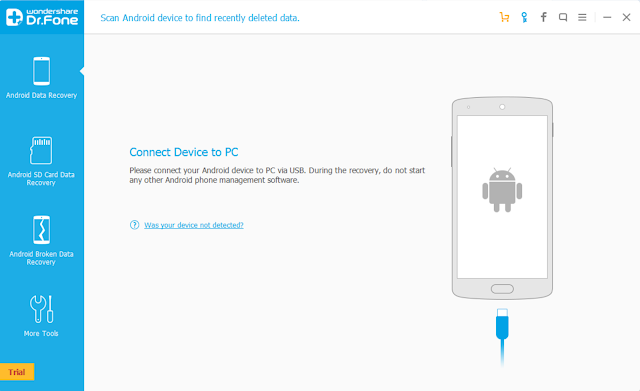
Double click on the program's icon on your computer to install and run it. Then you will get the primary window, which will prompt you to connect your Samsung phone to PC via USB.
connect Samsung phone to a computer
Step 2: Enable USB debugging on your Samsung Galaxy
If you didn’t enable the USB debugging on your device before, you will get a pop-up message on your device and need to enable it now. If you’ve done it already, just skip this step.
Turn on USB Debugging on Samsung phone
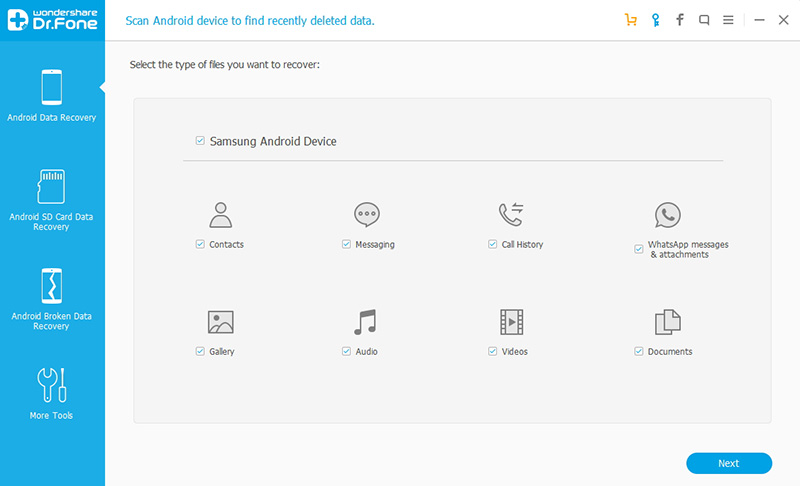
If you only want to recover Samsung SMS,please select the "Messages" items you want to get back later
select the Messaging files type
Step 3: Analyze and scan your Samsung Galaxy for lost or deleted messages
Now the program has detected your Samsung device, you can select one of scan mode "Standard Mode" or "Advanced Mode".
choose a scan mode
During the Android Data Recovery analyzing your phone, a pop - up will asking whether allow or not to proceed. Here you need to move to your phone and tap on "Allow" to enable the Superuser Request. And then click "Start" on the program's window to begin scanning your device.
scan your Samsung phone for lost SMS
In this interface, you will see that there're different data types listed. Just choose the one that you want. For example, "Messages", "Whatsapp Messages" will be shown. Just tick it if you want to recover deleted text messages on Samsung. And then, click "Next".
Step 4: Preview and recover your deleted messages on Samsung phone
After scanning, the recoverable messages will be display in the scan result. Preview them one by one and mark those you want to back, at the last step is just click "Recover" to save them as a HTML file on your computer.
recover deleted sms on Samsung phone
Note: SMS found here contains those you deleted recently (displayed in orange) and those existing on your Samsung (displayed in black). You can separate them by using the button above: Only display deleted items.With this Android data recovery,you can also restore Samsung lost contacts, photos, videos and more.
How to Recover Text Messages from Broken Samsung Phone
If your phone is broken,like broken screen,black screen, can not enter the phone system, touch screen not work,you can't access the precious data, such as contacts, text messages, pictures, videos, call history, whatsapp messages and more that have been stored in the phone memory
Step 1. Connect your broken Samsung phone to the computer
After you launch the Android Data Recovery on computer,we also provides Android Data Recovery(Mac) version for you download, then click "Android Data Extraction(Damaged Device)",the program will pop up an new windows and go to the next step.
Step 2.Choose the file type "Messages" item you want to extract from broken Samsung phone
select the SMS file type recovered from broken phone
Step 3. Choose the fault type of your phone and the phone model
After you select the file types,you need to choose the fault type of your phone. Choose "Black/broken screen",then it will lead you to the next step.
Choose the fault type of your phone
Then you will select the device model of yours Samsung,please make sure choose the right "Device Name" and "Device Model".Then click "Next".
select thephone model
Step 4. Enter Download Mode and Download Recovery Package to Samsung Phone
Now, just follow the instructions on the program to get the Samsung phone into Download Mode.
1)Power off the phone.
2)Press and hold Volume "-", "Home" and "Power" button on the phone.
3)Press "Volume +" button to enter download mode.
Enter your phone to download mode
Step 5. Analyze the Broken Samsung Phone
As you can see, the program will download the recovery package and analyze your broken Samsung phone until it is completed.
Download Recovery Package for your broken phone and analyze the devices
Step 6. Preview and Recover SMS from Broken Samsung Phone
After the analysis and scanning is completed, the Android Data Recovery program will display all the file types by categories. Then select the files type "Messaging" to preview. Click "Recover" to extract all the messages from damaged Samsung Galaxy phone and save them on computer.
begin to extract/recover SMS from damaged Samsung phone
Free download the all-in-one Android Data Recovery and have a try!
Tips: You also can recover recently deleted SMS, contacts, photos, videos from the broken/damaged Samsung Galaxy phone.All of existing files can be extracted by the Broken Android Data Recovery.What's more,you can preview and recover samsung contacts, photos and videos (no preview), as well as you do with the messages. Contacts can be saved as CSV, VCF and HTML files on your computer.
To avoid data loss or deleted by careless,we recommend you should backup Samsung data to computer,regularly. Related Use Guide:
Lost contacts on your Samsung?Don't worry,you can restore them,actually all lost contacts on Samsung still in your devices.You can recover Samsung contacts with a Samsung data recovery software-Android data recovery.If you accidentally lost all telephone number when you were root Samsung Galaxy phone, you may know the frustration of losing your important contact list. It is possible to recover lost contacts from Samsung Galaxy without a backup before,or restore deleted Samsung contacts.
Samsung contacts recovery software - Android Data Recovery,which is specially designed for Samsung users recover your lost contacts from Samsung device, and recover all data from Samsung devices,you can use this Samsung data recovery to recover messages, photos and video from Samsung Galaxy/Note.
Recover Contacts Galaxy S4
This Android data recovery program applies to all currently popular Samsung Galaxy smartphones:
Samsung Galaxy S4, Samsung Galaxy S3, Samsung Galaxy S2, Samsung Galaxy S, Samsung Galaxy Note III, Samsung Galaxy Note II, Samsung Galaxy Note, Samsung Galaxy S3 Mini, Samsung Galaxy S2 Plus, Samsung Galaxy Ace, Samsung Galaxy Y, Samsung Epic, Samsung Galaxy Grand
Free download the Android data recovery,and restore lost contacts from below step-by-step guide now!
How to Restore Contacts from Samsung Galaxy/Note
Step 1 Install and luanch the Android Data Recovery
After downloading the program, install and run it on your computer. Then you will see it's primary window to ask you to connect your Android device to PC via USB cable.
Step 2 Enable USB debugging on your Samsung phone
Once connect your phone to the computer, the program will promtp you to enable USB debugging if your Samsung has not set up that option. There are three ways to finish this job:
1) For Android 2.3 or earlier: Enter "Settings" < Click "Applications" < Click "Development" < Check "USB debugging"
2) For Android 3.0 to 4.1: Enter "Settings" < Click "Developer options" < Check "USB debugging"
3) For Android 4.2 or newer: Enter "Settings" < Click "About Phone" < Tap "Build number" for several times until getting a note "You are under developer mode" < Back to "Settings" < Click "Developer options" < Check "USB debugging"
Samsung contacts recovery
Note: If you still get this window after enabling USB debugging on your device, please try to click "Open? Next...", or try to disable and reset it again.
Step 3 Begin analyzing and scanning your Samsung
Now you will see the icon of the step 3 light up, you can click the green button "Start" to begin to analyze the data on your Samsung device.
Note: Please make sure that the battery on your device is more than 20%.
When there is a superuser request poping up on the screen of your device, it's time to turn back to your Samsung and click "Allow" to enable it. Then click "Start" to continue scanning your device for deleted contacts on it.
Recover Samsung Contacts
Step 4 Preview and restore lost contacts from Samsung Galaxy
As you can see in the scan result, you can not only recover deleted contacts from your Samsung, but also retrieve text message, photos and videos. If you just need to recover lost contacts, just mark "Contacts" and then click "Recover" to save them to your computer.
Restore Samsung Contacts
So after above 4 steps, you can get all your lost and deleted contacts back from any Samsung Galaxy device easily and reliably with the help of this Android Data Recovery. Just try it for free.
Many Samsung users ask similar question: "Any way to recover lost data and deleted files on Samsung phones?" "How to restore lost contacts, text messages, photos, videos from my Samsung?" on the bbs. Tell you the truth: Actuall,all lost data or deleted files are still in your Samsung mobile phone memory card until that data is not overwritten by any new data.If want to recover lost data from Samsung phone,you must to stop using your Samsung device immediately,so that you can easilly to restore losing your files.However,to restore deleted files from Samsung,you must to use a prefessional android data recovery software.
Your Samsung Galaxy I1900 mobile phone is the third hand on your body! You use it extensively, taking pictures with families or your friends, recording videos for your birthday party or a wonderful show, enjoying music from the internet, etc. But what if you have deleted all of your photos, videos and songs by accident on your mobile? Or formatted the SD card of your phone by mistake? I can image that how heartbreaking it is to lose all your amazing memory which seems like a diary of your current life. Is it a way to recover pictures, videos or songs you deleted or lost on your mobile phone? Yes, it is! There are some mobile data recovery software available to so. Samsung Data Recovery-Android Data Recovery Software is a useful and powerful Android Samsung recovery tool to restore deleted contacts, text message, photos and videos from all kinds of Samsung device, including Samsung phones and tablets, Samsung Captivate, Samsung Infuse, Galaxy Nexus, Samsung Epic 4G Touch, Samsung Galaxy Ace, Samsung Galaxy Note and so on
Method 1: If you have a memory card (Most of them are Micro SD cards.), it is easier to recover your files. Step 1. Take out the SD card off your Samsung Galaxy Note phone, put it into a card reader. Plug the card reader into your computer. Or connect your phone with your pc directly via USB cable. Why you need to do so is to make your phone or memory card appear in "My Computer". Step 2. Download a mobile data recovery software, here I recommend you Android Data Recovery, simply because I had tried it and it worked. And install it on your computer and launch it. Step 3. Open Tenorshare Data Recovery and scan your SD card to get your photos, videos and songs back. Method 2: If your files are saved o n the phone memory or you can say built-in SD card, you need to follow below instructions to make your Samsung phone show as a drive letter on y our PC. Step 1. Connect your phone with PC via USB cable. A USB icon will appear in the notification area at the top of the phone screen. Step 2. Pull down the notification and tap "USB connected". Step 3. Tap "Mount" on the dialog box that's displayed. Step 4. Two removable drives will show up on my PC; one for the built-in SD card, and the other is the expansion/external SD card. Step 5. Continue Step 2 in Method 1. Are you in need of data recovery on your mobile phone? Why not try the above methods to recover your files from mobile phone? For more information: How to recover lost data from Samsung Phone