Showing posts with label galaxy s6 data recovery. Show all posts

Sunday, January 10, 2016

Samsung Galaxy S6 Data Transfer & Recovery:How to Recover and Transfer Data on/to Galaxy S6

Samsung's first generation Galaxy S series phones began in March 2010, an instant past five years, has now developed to the sixth generation Galaxy S smartphone - Samsung Galaxy S6. Samsung Galaxy S series has been the flagship Android phone status symbol, usually with the same period of the most powerful configuration and performance, which is reflected most vividly in the Galaxy S6. In terms of self-developed Samsung Exynos CPU, continuous improvement of the Super AMOLED screen, high-speed flash memory chips, or system development based Android 5.0 interface, reflects Samsung's strong research and production capacity.

Samsung Galaxy S6 Transfer & Recovery
In terms of products, the Samsung Galaxy S6 is currently the most sophisticated Galaxy S smartphone, it skillfully glass and metal covers the entire surface of the phone, the interior is used in its own eight-core Exynos 7420 chip, 3GB RAM, 32GB start of ROM, ultra high-definition 5.1 inches Super AMOLED screen resolution of 2560x1440 pixels, PPI nearly 600, built 2550mAh capacity battery, 16 million-pixel camera OIS optical image stabilization, support TDD and FDD are two types of 4G network, based on Android 5.0.2 Preferences system development mobile phone interface, configuration called gorgeous.

Transfer Old Phone to Samsung Galaxy S6/S6 edge +

When you buy a new Samsung Galaxy S6, Galaxy S6 edge(plus),the first thing you need to do is transferring data from old phone to new Galaxy S6.According to our survey,many new mobile phone users want to sync contacts and text messages from old phone to new phone, if you get a new Galaxy S6, it necessarily to transfer data and file to your Samsung Galaxy S6 and Samsung Galaxy S6 Edge from your precious mobile phone.

Transfer iPhone, Android, Symbian Nokia to Galaxy S6

Samsung Galaxy S6 Data Transfer - Phone to Phone Transfer is a useful mobile utility tools that can help you transfer all contents/files from old phone to Samsung Galaxy S6/S6 edge,you can use this powerful phone data transfer software to sync iPhone to Galaxy S6, transfer old Samsung Galaxy to Galaxy S6, copy data from Android phone to Galaxy S6, switch all contents from Nokia to Galaxy S6...all data can be transferred including contacts, SMS messages, songs, videos, call logs, photos, Apps, Ebooks etc. What’s more, the Galaxy S6 Data Transfer and Recovery tool also allows you backup, restore all contents from Samsung Galaxy S6/S6 Edge easily.

Phone to Phone Transfer offer both Windows Version and Mac Version for users,please download a suitable version according to your computer’s operation system and have a try!


Download Windows Version Download Mac Version

Tips: This phone transfer also can help you erase data on old Samsung mobile phone permanently,even no data recovery can scan and get those wiped data back,if you want to sell the old Android phone,this program allows you erase Samsung data before selling.

Galaxy S6 Transfer Screenshot:

Transfer iPhone Data to Galaxy S6

Sync data from Android Samsung to Galaxy S6
Data Loss or Deleted on Samsung Galaxy S6

Many users encounters the data loss after rooting, Android OS upgrading, factory setting reset or deleting by accidentally. If you have bought a new Samsung Galaxy S6, but don’t forget to take care of your important data and information on Samsung Galaxy S6,to avoiding data loss,we must to backup data habitually and regularly.
Once delete files on Galaxy S6,how can you get deleted data back from Galaxy S6? Many users like taking photos by the new Galaxy S6,once deleted them because of the wrong “Delete”operation,how can you restore deleted photos on your Samsung S6? Let’s teach you how to recover deleted data on Galaxy S6 with a professional Galaxy S6 Data Recovery.

Recover Deleted or Lost Data from Samsung Galaxy S6/S6 Edge

Actually,we still have chance to retrieve lost/delete data on Samsung S6 without backups,please no need to be worried either. To get Samsung Galaxy lost data back,today we recommend you use this Galaxy S6 Data Recovery,which can help you scan and restore photos, contacts, text messages, videos, WhatsApp messages, call logs, musics and other document from Samsung S6/S6 Edge only few steps. The Samsung Galaxy S6 Data Recovery - Android Data Recovery works well with all Samsung devices,such as Samsung Galaxy S5/S4/S3/S2, Galaxy Note 5/4/3/2, Galaxy A9/A8/A7/A5,Samsung Infuse, Galaxy Nexus, Samsung Epic 4G Touch,ect. If you use other android phone like HTC, LG, Motorola, Sony, Huawei, Xiaomi,ect,this recovery program is the best choice for you!

Free download the Samsung Galaxy Recovery and have a try!

Download Windows Version Download Mac Version

Steps to Retrieve Deleted Data on Galaxy S6/S6 Edge Directly

Tips: Once data lost on your Samsung phone, remember not to take photos, videos with your Samsung phone or update anything. Otherwise, the deleted data will be overwritten and recovered by new data,and what you deleted files not be extracted back any longer.

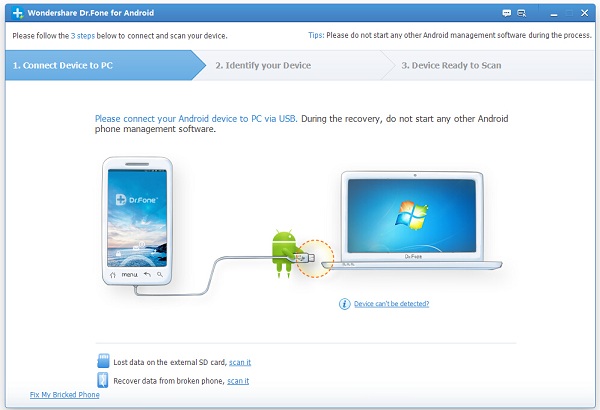
Step 1. Run the Galaxy Recovery and connect your Samsung S6 to computer
Download, install and run Samsung Data Recovery tool on the computer, and then connect your Galaxy S6 smart phone to your computer via the USB cable.

Step 2. Enable USB debugging on your Samsung S6
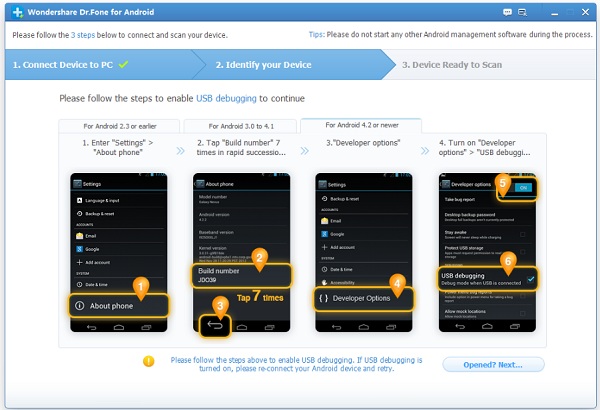
When the program detects your phone, it requires you to enable USB debugging. There are three options. Please choose the one for your phone's Android OS.

0) For Android 5.0 or newer: Tap "Settings" > "About Phone" to tap "Build number" seven times for "You are now a developer!" signal. Then, move to "Settings" > "Developer options" to turn on "USB debugging"
1) For Android 2.3 or earlier: Enter "Settings" < Click "Applications" < Click "Development" < Check "USB debugging"
2) For Android 3.0 to 4.1: Enter "Settings" < Click "Developer options" < Check "USB debugging"
3) For Android 4.2 or newer: Enter "Settings" < Click "About Phone" < Tap "Build number" for several times until getting a note "You are under developer mode" < Back to "Settings" < Click "Developer options" < Check "USB debugging"

Step 3: Analyze and Scan deleted or lost data from your Samsung S6
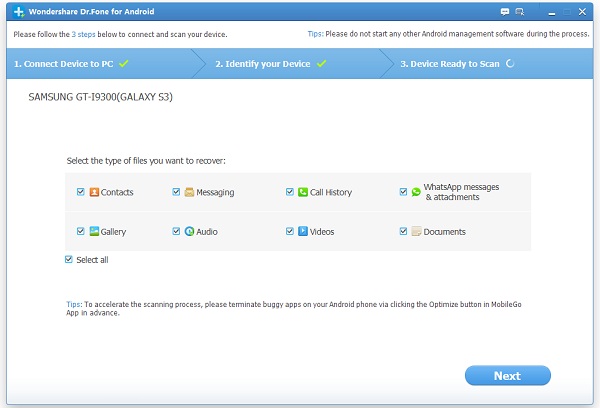
After your Samsung phone is successfully detected by the program, make sure that your phone battery is more than 20% to enable the follow steps. Then click "Start" button to let the program analyze the file on your device.

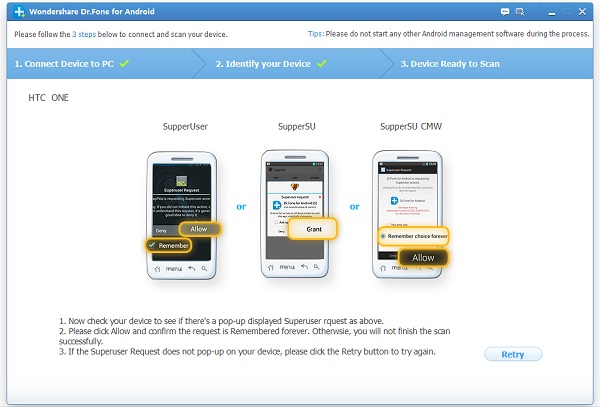
After the program finishes analyzing process, it will prompt you turn back to your device again to accept and tap on the "Allow" button to let the program scan your phone for lost messages, contacts, photos and video on your Samsung phone.

Step 4. Preview and restore lost data from Samsung Galaxy S6
After the scan, a list of recoverable files that have been found from your Samsung will be shown. Moreover, there will be a preview window of files for you to preview the messages, contacts, and photos from Samsung device before recovery. You can choose the data you want and click "Recover" button to save them on your computer.

Recover SMS,Contacts on your Galaxy S6/S6 edge


Restore Photos, Videos from Samsung S6


Finished!

Download Android Samsung Galaxy Data Recovery software to have a try now!

Download Windows Version Download Mac Version


Related Articles:

How to Recover Deleted Contacts from Galaxy S6

How to Transfer Contacts from iPhone to Galaxy S6

Transfer Contacts from Galaxy S3/S4/S5 to Galaxy S6

Wednesday, October 21, 2015

Recover Deleted Video,Photos on Samsung Galaxy S6 Edge

The Samsung Galaxy S6 Edge Plus is a supermodel of a phone. It’s better looking than the Note 5 and even the iPhone 6, and is one of few new phones that will actually get a reaction out of people. Thanks to the larger 5.7-inch screen on the Edge Plus, the edge is more prominent and feels like a real feature of the phone.

The second is utility. On the Galaxy S6 Edge, you could swipe over from the edge to bring up a list of your favorite contacts. Now, you can also bring up a list of your favorite apps, and adjust the height of the zone where you can edge swipe.

Are you suffering with a great loss of your saved video files? Have you accidentally got deleted  your entire videos of your lovely journey? The loss of files is really a harass for all users and above that if the particular files are very important for anyone. So what do you do after you have deleted the video file?

recover photos data on samsung galaxy s6 edge
Is there any way to restore video,photos back from Galaxy S6/S6/S5/S4/S3?

Certainly there are ways of getting back your video files. The Samsung Photos Recovery can help you recover lost or deleted photos,videos from Samsung Galaxy S6 edge,as well as Samsung Galaxy S7/S7 edge,Galaxy S6/S5/S4/S3,Samsung Galaxy Note 5/4/3/2,ect,it is not a new phenomenon and with increase in the number of gadgets this has become quite popular.When you delete something it is not totally removed it from your device and Android Data Recovery just brings it back to where it was earlier.

Download Windows Version Download Mac Version 

Tips: You also can use this samsung data recovery to recover contacts,sms,whatsapp,call logs and other document from Samsung Galaxy directly,please follow the same steps.

Learn more: Samsung Galaxy S6 / S6 Edge + Data Transfer & Recovery

Directly Recover Deleted Video,Photos on Samsung Galaxy S6 Edge/S6/S7/S5/S4

Step 1. Connect your Samsung Phone to the PC and Launch the Program
Use a USB cable to connect your device to the computer. Then open the recovery software so you can get the main interface as follow.


Step 2. Begin to Enable USB Debugging on your Samsung Galaxy
When it comes to the window below, you are asked to enable USB Debugging cable on your phone, please go as the right steps according to your Android OS version:
1) For Android 2.3 or earlier: Enter "Settings" < Click "Applications" < Click "Development" < Check "USB debugging"
2) For Android 3.0 to 4.1: Enter "Settings" < Click "Developer options" < Check "USB debugging"
3) For Android 4.2 or newer: Enter "Settings" < Click "About Phone" < Tap "Build number" for several times until getting a note "You are under developer mode" < Back to "Settings" < Click "Developer options" < Check "USB debugging"
Note: If your phone has enabled USB debugging, just skip this step.


Step 3. Start Scan and Check Deleted Samsung Videos
Here, you need to finish two operation before you can recover those deleted videos on your phone. Firstly, please click "Start" button to let the program analyze your Galaxy.Select Video from the below interface. It will save more time than you choosing "Select All".Then, go back to your phone screen, cause you need to click "Allow" on it to go ahead.


Step 4. Restore Deleted Videos on your Computer
When the scanning finish, choose "Videos" on the list, you will see all videos show on the right window. Select those you want to recover, then wait for the recovery process. When it comes to an end, your precious videos come back to your life successfully.


Note: You can choose to save the scan results in need next time.

Download Windows Version Download Mac Version 

Related: how to recover data on Galaxy S6 edge


Read more article about Samsung Recovery:

How to recover deleted text message on Samsung:Accidentally deleted your messages from Samsung phones, like Galaxy S3, S4, Samsung Ace, Samsung Wave? Actually, when the message is deleted, it doesn't go to the trash or the recycle bin, because there isn't a trash or a recycle bin on your Samsung as on the computer. And it's only marked as useless information and can be overwritten by new data. Therefore, the deleted message only turns to be invisible, and disappear until being overwritten.Well, you don't need to panic. Android Data Recovery software can help you recover deleted SMS, pictures, videos and contacts from Samsung cell phones. As the world's first Android data recovery software, it's completely safe and reliable.

How to recover deleted photo from Samsung: For some reason lost or deleted your worthy photos and images from your Samsung tablet or phone? Actually,all those photos on your Samsung devices lost or deleted still on your stored on Android devices,those photos you just deleted are only marked as invisible data by the phone OS and your photo can be recoverable until some new file overwrites it.However,how to recover photos from Samsung devices? Let’s teach you a way to get deleted/lost photos back from Android Samsung devices easily.

How to recover deleted photos on Samsung Galaxy S7: If you deleted photos or videos on your Samsung Galaxy S7,you can use this Android Photo Recovery to restore deleted pictures from Galaxy S7 directly.In additional,the Android Data Recovery also allows you recover contacts, sms, whatsapp mesages, call history from Samsung Galaxy S7/S7 edge.

Thursday, April 2, 2015

Galaxy S6 Data Recovery:Recover Contacts, Messages, Photos on Samsung Galaxy S6

More about the Samsung Galaxy S6
The Samsung Galaxy S6 release date is now just a matter of days away, with the latest powerhouse of the smartphone space to hit retailers' shelves on April 10.

One of the major talking points on the 2015 tech calendar, the Galaxy S6 release date was confirmed during the device's MWC 2015 unveiling earlier this month. The imminent launch means there are now less than two weeks left to get saving the pennies you'll need to snap up this smartphone monster.

Samsung Galaxy S6 Data Recovery
You will need to save a fair chunk of change, too, as the S6 isn't coming cheap. With Galaxy S6 pre-orders now firmly underway, Samsung has confirmed that prices for its latest flagship phone will start at a lofty £599.99. The spin-off Galaxy S6 Edge is even more expensive, with prices kicking off at a wallet-busting £760.

Announced just hours after HTC took the lid off its own flagship, the HTC One M9 – which will also beat the Galaxy S6 to the shelves with a March 31 release date – the S6 was forced to share the launch stage with its innovative, curved screen hosting sibling.

Both devices feature impressive spec sheets with 64-bit, octa-core Exynos 7420 processors lining up alongside 16-megapixel, OIS-enhanced rear-mounted cameras and 5.1-inch, 2K displays. The only major difference is that the Edge's panel, as its name suggests, has been curved down over both the phone's left and right hand edges.
Galaxy S6
This might not be the end of the S6 spin-offs either, as reports have already surfaced around the potential introduction of a waterproof Galaxy S6 Active.

If you're after more in-depth analysis of the phones, why not read our hands-on Samsung Galaxy S6 review and our first look Samsung Galaxy S6 Edge review.

Learn more about Data Transfer & Recovery for Samsung Galaxy S6/S6+

Also known as Samsung Galaxy S6 SM-G920
Curved screen version available - Samsung Galaxy S6 edge
Available versions: SM-G9200 (Hong Kong), SM-G9208 (China), SM-G9208/SS (China), SM-G9209 (China), SM-G920A (AT&T), SM-G920F (Global), SM-G920FD (Pakistan, Philippines), SM-G920I (LATAM, Singapore, India, Australia), SM-G920S (Korea), SM-G920T (T-Mobile)

Expectant Features of Samsung S6
- F1.9 real time HDR, low light shot, 0.7s launch time and fast tracking AF.
- With flash on both cameras, you can take high quality selfies by shortcut.
- Curve-screen and stunning 5.1″ QHD Super AMOLED display, with”real” RGB color.
- Faster LTE chip, you can experience all the feature of 4G.
- Samsung pay function.
- Supports wireless charge, its non-removable battery keeps longer playtime.
- 4 color options: Black Sapphire, White Pearl, and Blue Topaz, Gold Platinum.

Loss Data on Samsung Galaxy S6
Every year, large amount of android users encounters the data loss when they replace a new phone. You may be ready to replace a new Galaxy S6, but don’t forget to take care of the important data on your Samsung S6. Many reasons may cause the data loss, such as, mistakenly tapping the “Delete” button when you are exploring the new features of S6. What’s worse, we lost data without realizing it in most cases. That’s why the available backups is far enough to avoid data loss.If you deleted photos on Galaxy S6 by careless,you can directly scan and recover photos from Samsung Galaxy S6

Recover lost Data from Galaxy S6
If by any chance that you accidentally lost/delete data on Samsung S6 without backups, there is no need to be worried either. A Galaxy S6 Data Recovery helps you recover the deleted photos, contacts, messages, videos, WhatsApp messages and other files from Samsung S6 in a few clicks.

This Free Android Data Recovery as the world’s first data recovery for Samsung Galaxy S6 smartphone. It will scan all your deleted data from Galaxy S6, including contacts, text messages, photos, videos, music, documents and WhatsApp history. You can preview and select needed files for retrieval. With Galaxy S6 Data Recovery, you won’t worry about data losing when your Samsung Galaxy S6 was broken or smashed.
If you use Samsung Galaxy S5,you can read this use guide about recover data from Samsung Galaxy S5.

Download Windows Version Download Mac Version

How to Recover Data from Samsung Galaxy S6?

--Restor SMS,Contacts, Photos, Videos on Galaxy S6 in 4 steps

Step 1. Run the program and connect your Galaxy S6 device to computer

Download, install and run Android Data Recovery tool on the computer, and then connect your Samsung phone to your computer via the USB cable.

Recover Data Loss on Samsung Galaxy S6
Step 2. Enable USB debugging on your Samsung S6

When the program detects your phone, it requires you to enable USB debugging. There are three options. Please choose the one for your phone's Android OS.
1) For Android 2.3 or earlier: Enter "Settings" < Click "Applications" < Click "Development" < Check "USB debugging"
2) For Android 3.0 to 4.1: Enter "Settings" < Click "Developer options" < Check "USB debugging"
3) For Android 4.2 or newer: Enter "Settings" < Click "About Phone" < Tap "Build number" for several times until getting a note "You are under developer mode" < Back to "Settings" < Click "Developer options" < Check "USB debugging"

Samsung Galaxy S6 Data Recovery
Step 3: Analyze and Scan your Samsung S6 for lost data

After your Samsung phone is successfully detected by the program, make sure that your phone battery is more than 20% to enable the follow steps. Then click "Start" button to let the program analyze the file on your device.

Scan your lost data from Samsung S6
After the program finishes analyzing process, it will prompt you turn back to your device again to accept and tap on the "Allow" button to let the program scan your phone for lost messages, contacts, photos and video on your Samsung phone.

Restore deleted files from Galaxy S6
Step 4. Preview and recover lost data from Samsung Galaxy S6

After the scan, a list of recoverable files that have been found from your Samsung will be shown. Moreover, there will be a preview window of files for you to preview the messages, contacts, and photos from Samsung device before recovery. You can choose the data you want and click "Recover" button to save them on your computer.

Preview and restore lost data from Samsung Galaxy S6
Finished!
Download Android Data Recovery software to have a try now!

Download Windows Version Download Mac Version

More about Samsung Galaxy S6 Data Recovery:

This Free Android Data Recovery as the World’s best data recovery for Samsung Galaxy S6,it can help you Recover contacts, messages, photos, videos, music, documents from Galaxy S6 directly.
Actually,no matter your Galaxy S6 was broken or smashed, you can restore data from Galaxy S6 to computer with professional Free Android Phone Data Recovery, which means that you won’t lose the files/contents stored in your Samsung Galaxy S6, such as contacts, text messages, photos, videos, music, documents and whatsapp history.
Read more: how to transfer contacts from iPhone to Samsung Galaxy S6

how to transfer data old Samsung to Galaxy S6